Tabs
Pinned and preview tabs, drag-to-reorder, and a context menu for managing the rules you have open.
Open rules, and the Settings, Templates, Log Reader, and About panels, all appear as tabs above the editor. Tabs work the way they do in a modern code editor.
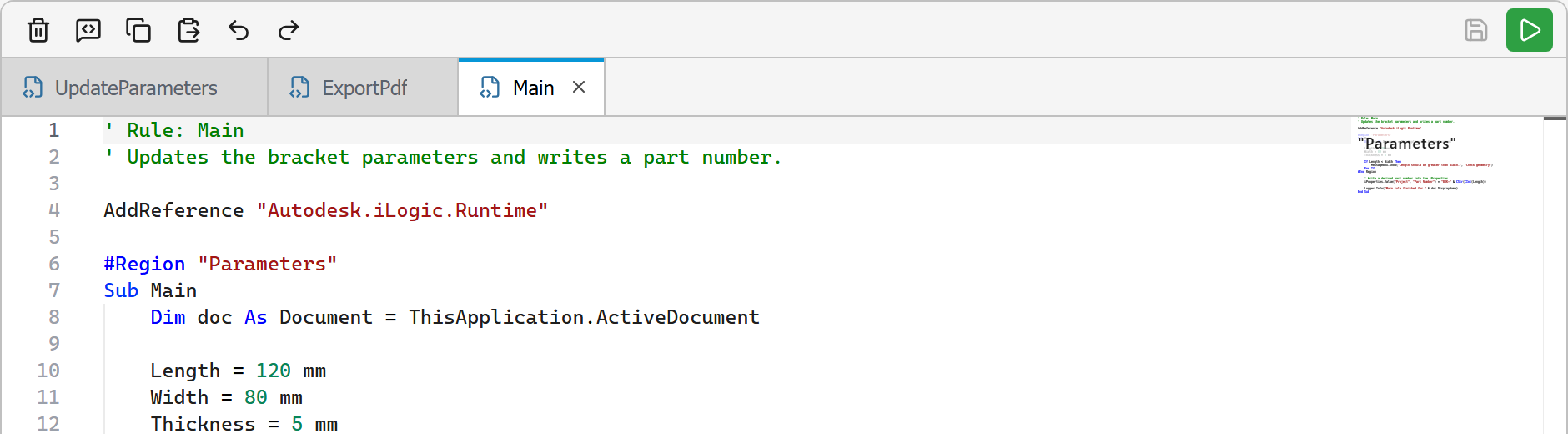
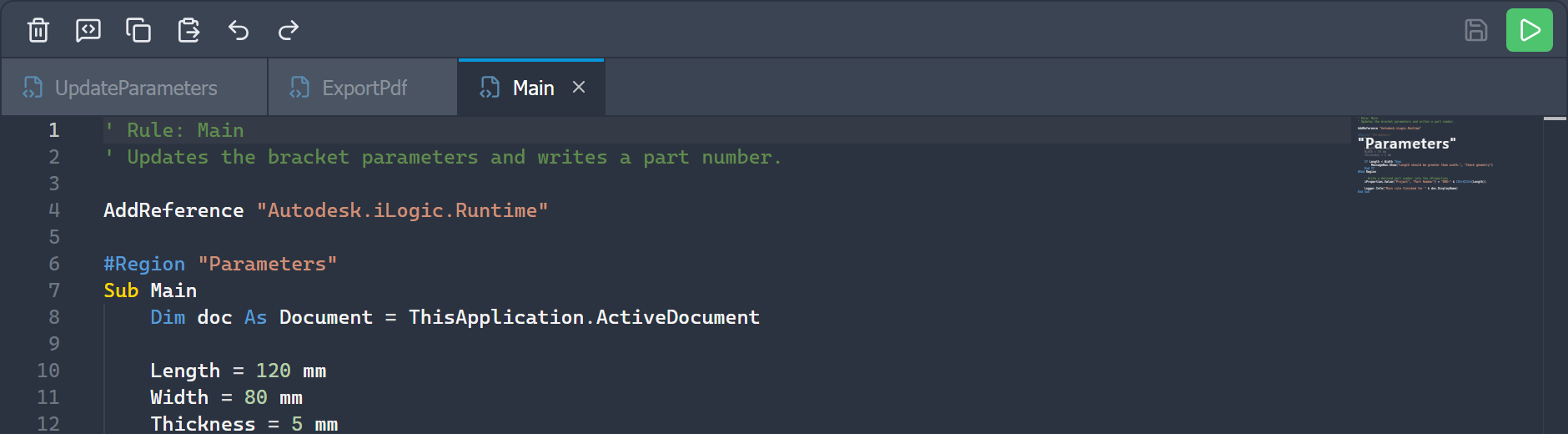
Preview vs kept tabs
With single-click opening (see Settings → Rules), clicking a rule opens it in a single reusable preview tab, shown in italics. Opening another rule reuses that tab rather than piling up tabs you did not mean to keep. To keep a preview tab, double-click the rule or its tab, or just start editing.
Pinning
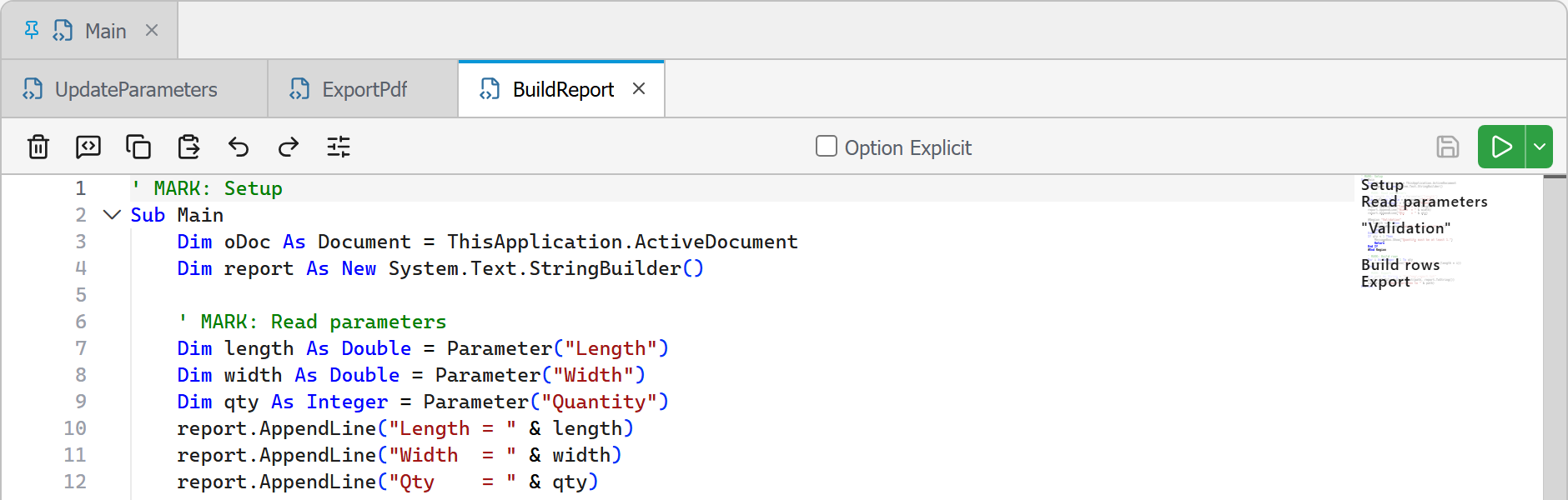
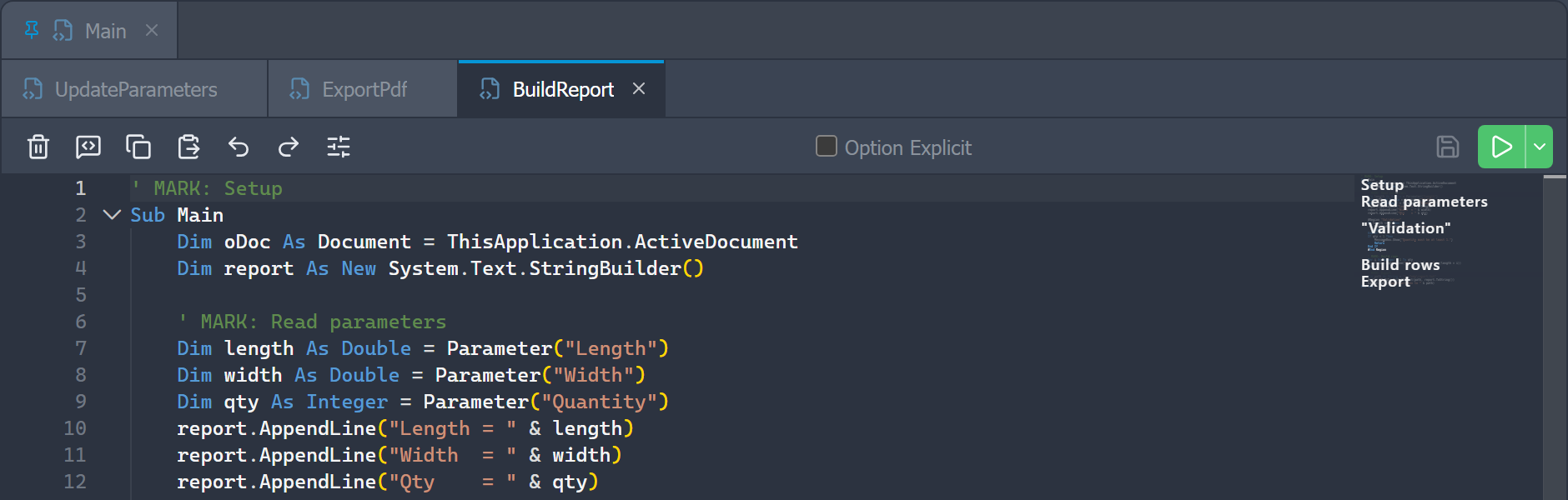
Pin a tab to keep it on the left in its own row, separate from the others. Pin or unpin from the tab's context menu, or with Alt+P. Pinned tabs survive Close all.
Reordering
Drag a tab to reorder it within its row. Pinned and unpinned tabs each keep their own row.
Closing
- Close the active tab with
Ctrl+W, with its close button, or by middle-clicking the tab. - Right-click a tab for Close, Close others, and Close all.
If a tab has unsaved changes (shown by a dot), closing it prompts you to save first.
Tab rows
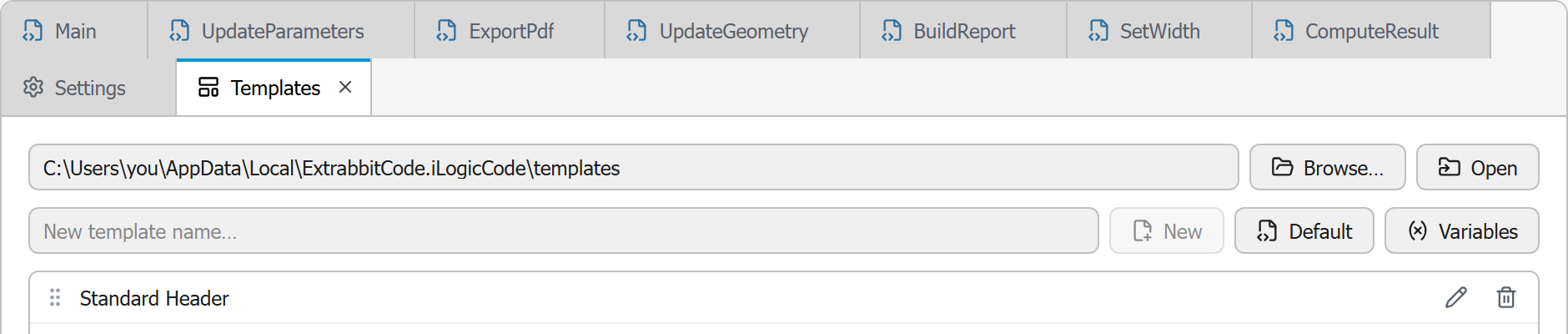
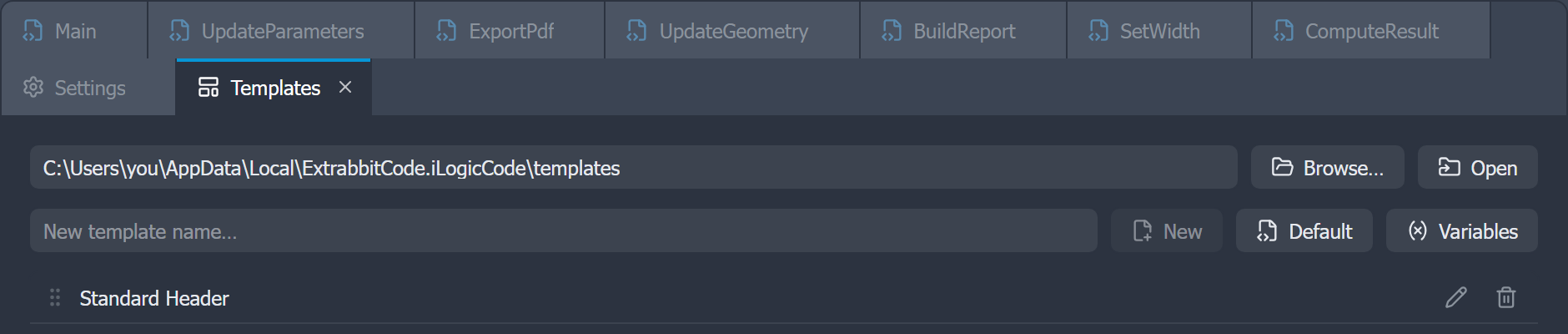
By default, tabs wrap onto multiple rows, up to three. When more tabs are open than three rows can hold, the tab area keeps that height and scrolls horizontally instead of growing further. Turn off Wrap tabs in Settings → Editor to keep them on a single horizontally scrolling row instead.
AI Agent
Run Claude Code in a terminal next to your rules, with your own Claude subscription. The agent edits rules as files, you review every change before it reaches the document.
Split Editor
Split the editor into multiple groups to view and edit rules side by side, with a layout that persists between sessions.