Rules Explorer
A file-style sidebar for browsing, creating, renaming, duplicating, and deleting document (internal) rules and external rule files.
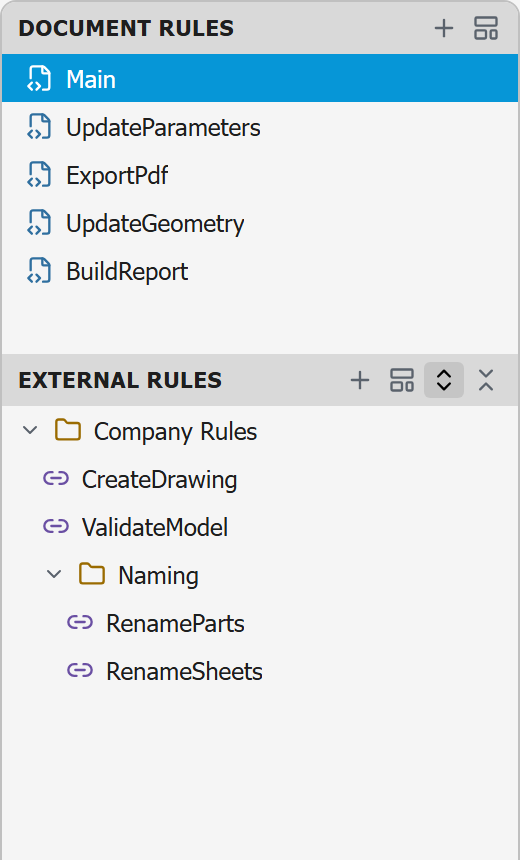
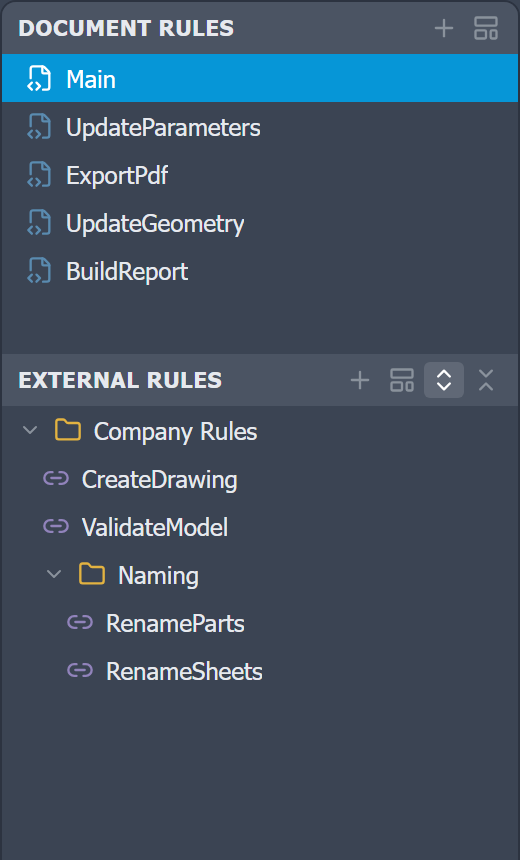
The sidebar on the left is the Rules Explorer. It has two groups: Document Rules (internal rules stored inside the active Inventor document) and External Rules (rule files on disk, from your configured iLogic directories).
The rail switches the sidebar between Rules (described here), Search rules, and Snippets, in that order. Clicking the active entry collapses the sidebar.
Document Rules
Document Rules lists the internal iLogic rules of the document that is currently active in Inventor, each shown with a icon. The list refreshes automatically when you switch documents. Each rule opens into an editor tab when you click it.
Like iLogic's own browser, the list follows in-place editing: while you edit a part or subassembly in place inside an assembly, Document Rules shows that component's rules, and finishing the edit switches back to the assembly's. Open document-rule tabs are handled as on any document switch. Model-state, iPart, and Content Center members edited in place show no document rules, as in iLogic.
External Rules
External Rules is a tree of the rule files found in the external rule directories configured in Inventor's iLogic options. Folders () are shown as a hierarchy and can be expanded and collapsed; external rule files show a icon. Use Expand all and Collapse all in the group header to open or close the whole tree at once.
External rule directories are managed in Settings → iLogic Configuration. The same setting controls which directories Inventor itself uses.
The editor watches these directories. When a rule file changes on disk outside the editor (the AI agent, another editor, a Vault get), the tree follows added, removed and renamed files, and an open tab of the file reloads with a short note. If you have unsaved edits in that tab, they stay: a banner offers Compare, Take the file's version or Keep mine (which keeps your text to save over the file). Open tabs are also checked when the editor gets the focus back, for folders on network shares that don't report every change.
Opening rules
How a single click behaves is set by Open rules with in Settings → Rules:
- Single click (preview): a click opens the rule in a reusable preview tab (shown in italics). Opening another rule reuses that tab. Double-click the rule, or its tab, to keep it open.
- Double click: a rule only opens on double-click, and always as a kept tab.
See Tabs for more on preview and pinned tabs.
Creating rules
Each group header has buttons for creating rules and, for External Rules, expanding the tree:
| Button | Action |
|---|---|
| New rule | Create an empty rule: in the active document (Document Rules header) or in the first configured external directory (External Rules header). Right-click a folder to create one there. |
| New rule from template | Create a rule seeded from a template |
| Expand all | Open every folder in the External Rules tree |
| Collapse all | Close every folder back to the roots |
The header buttons create document rules in the active document, and external rules in the first configured directory. To create an external rule (blank or from a template) in a specific folder, right-click that folder and choose New Rule or New Rule from Template.
Managing rules
Right-click any rule for its context menu:
| Action | Available on | Description |
|---|---|---|
| Rename | All rules | Rename the rule (a case-only change is allowed) |
| Duplicate | All rules | Duplicate the rule with an auto-incremented name |
| Delete | All rules | Permanently delete the rule (with a confirmation) |
| Open in Explorer | External rules only | Reveal the rule file in Windows Explorer (Alt+O) |
Deleting a rule is permanent. For document rules it removes the rule from the document; for external rules it deletes the file from disk.
Right-click a folder for New rule, New rule from template, and Open in Explorer.
You can also choose Open in Explorer from the right-click menu of an open external-rule tab or an external-rule heading in Find in Rules.
Moving rules between folders
Drag an external rule onto another folder (or a root directory) to move the file there. The folder highlights as you drag over it, and if the rule is open in a tab, the tab follows it to the new location. A move is skipped if a rule with the same name already exists in the target folder. Document rules live inside the document and can't be moved this way.
Resizing the sidebar
Drag the divider between the sidebar and the editor to change the sidebar width, and the divider between Document Rules and External Rules to change their split. Drag the sidebar narrow enough, or click the active Rules () icon in the rail, to collapse it entirely. The layout is remembered between sessions.