Split Editor
Split the editor into multiple groups to view and edit rules side by side, with a layout that persists between sessions.
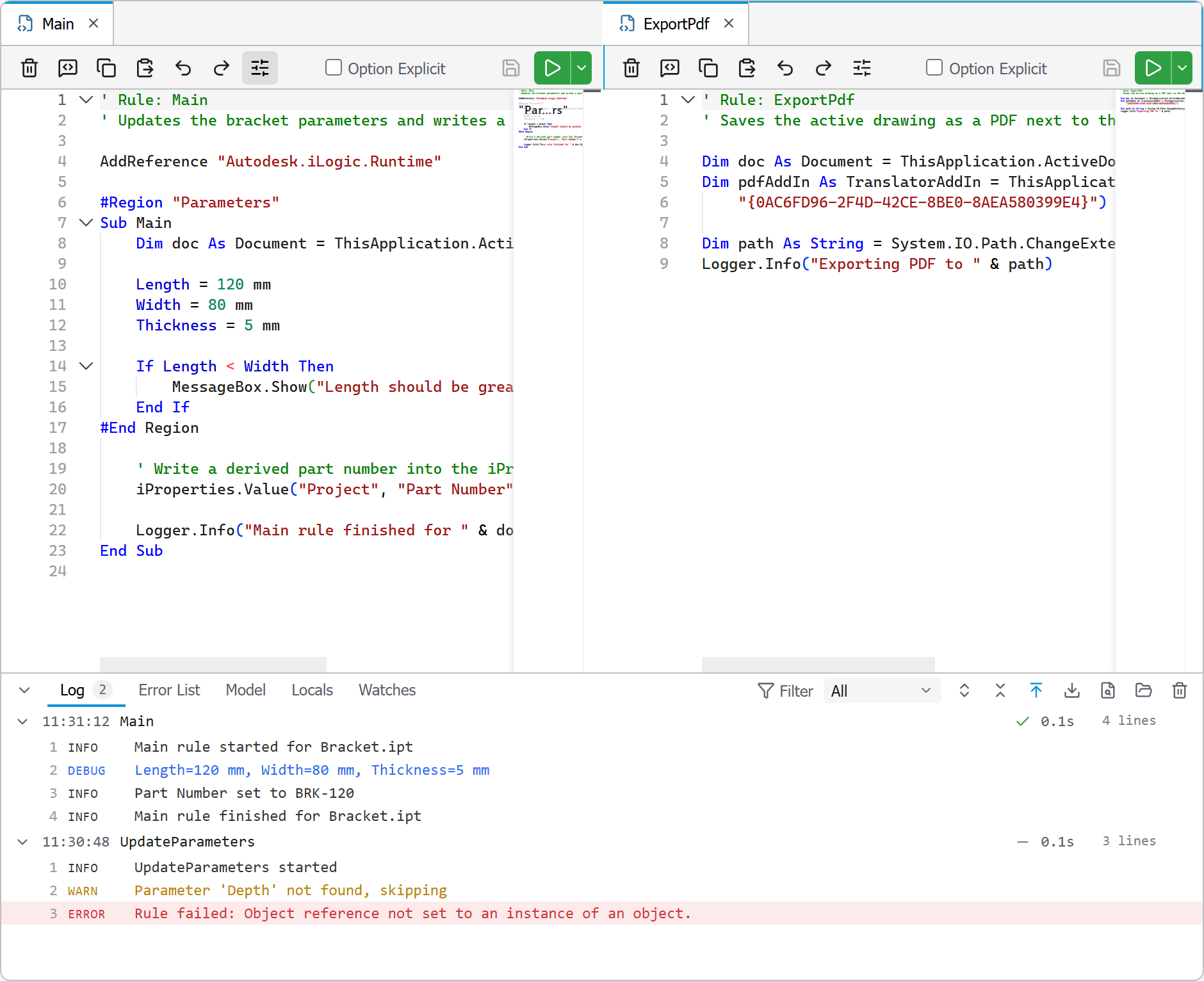
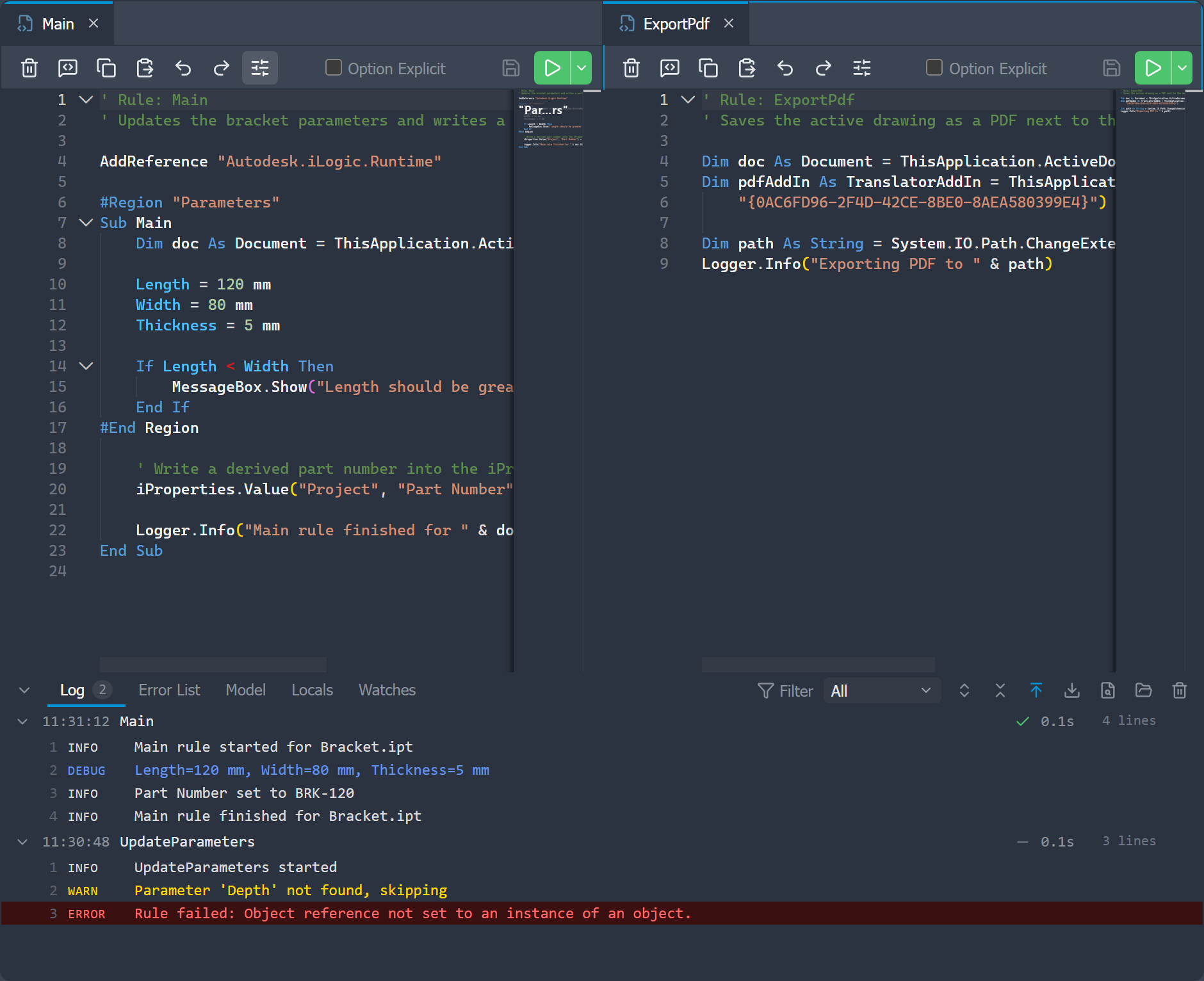
You can split the editor into independent groups to see two (or more) rules at once, for example to compare a rule with another, or keep a reference open while you edit.
Splitting
Each group has its own tab strip and active tab. To create a split:
- From a tab's menu: right-click a tab and choose Split right or Split down.
- By dragging: drag a tab toward the edge of a group. Drop zones light up for left, right, top, and bottom; drop on an edge to split in that direction, or in the center to move the tab into that group without splitting.
You can split repeatedly to build a row/column layout of groups.
Working with groups
- Focus: the focused group is outlined in the accent color. Click into a group to focus it. Each group has its own editing toolbar, and keyboard shortcuts act on the focused group's editor.
- Resize: drag the divider between two groups to change their relative size.
- Close: closing a group's last tab removes the group and the remaining groups expand to fill the space.
Persistence
The split layout is remembered between sessions, including which external rules and templates were open in each group. Rule source is reloaded fresh on the next launch; only the layout and the open-rule references are stored. Document rules are not reopened: they belong to a document that may not be open when Inventor starts, and a same-named rule in another document must not take their place.