Running Rules
Save and run the active iLogic rule through Inventor's engine with one click, and watch the result in the run log.
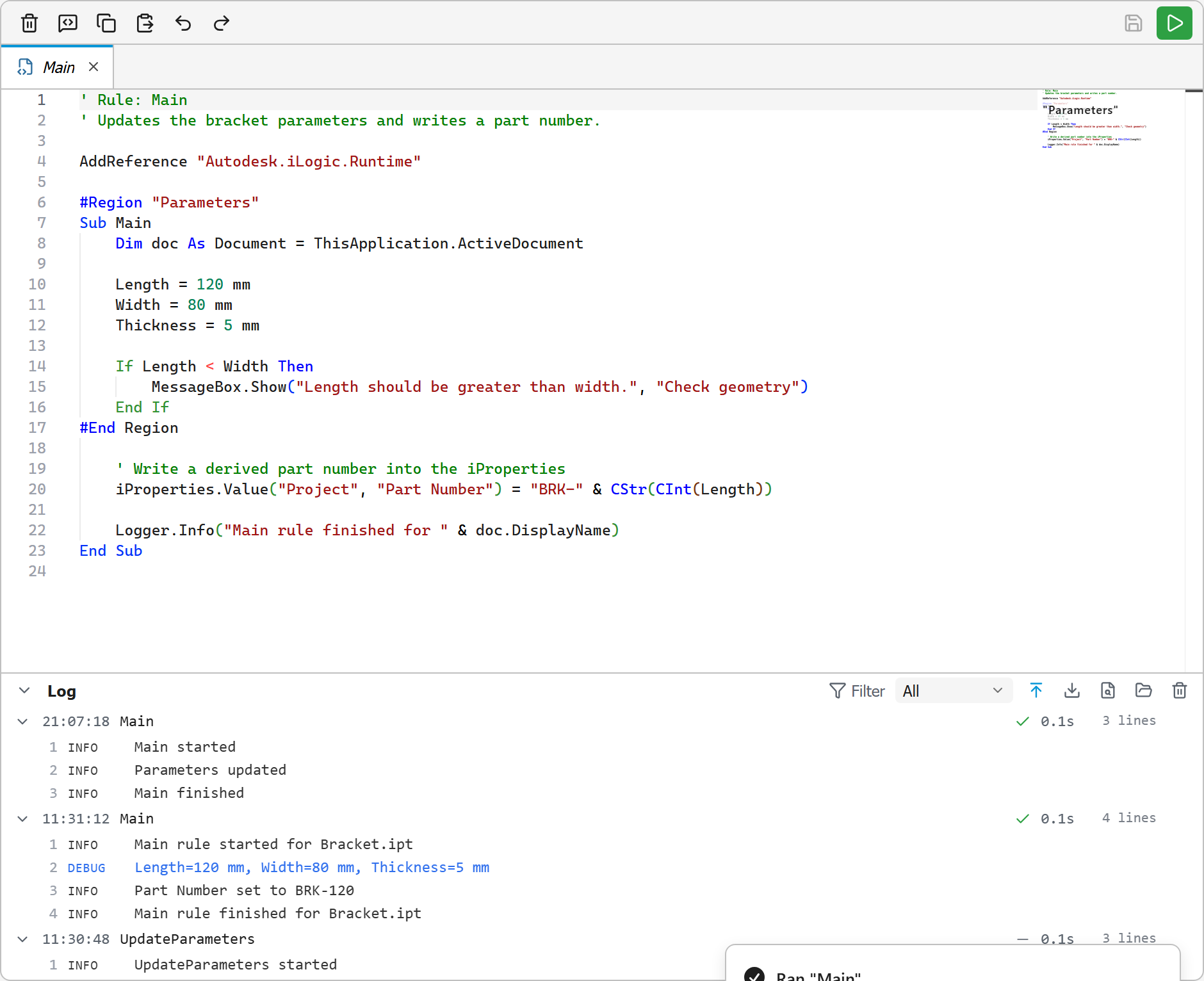
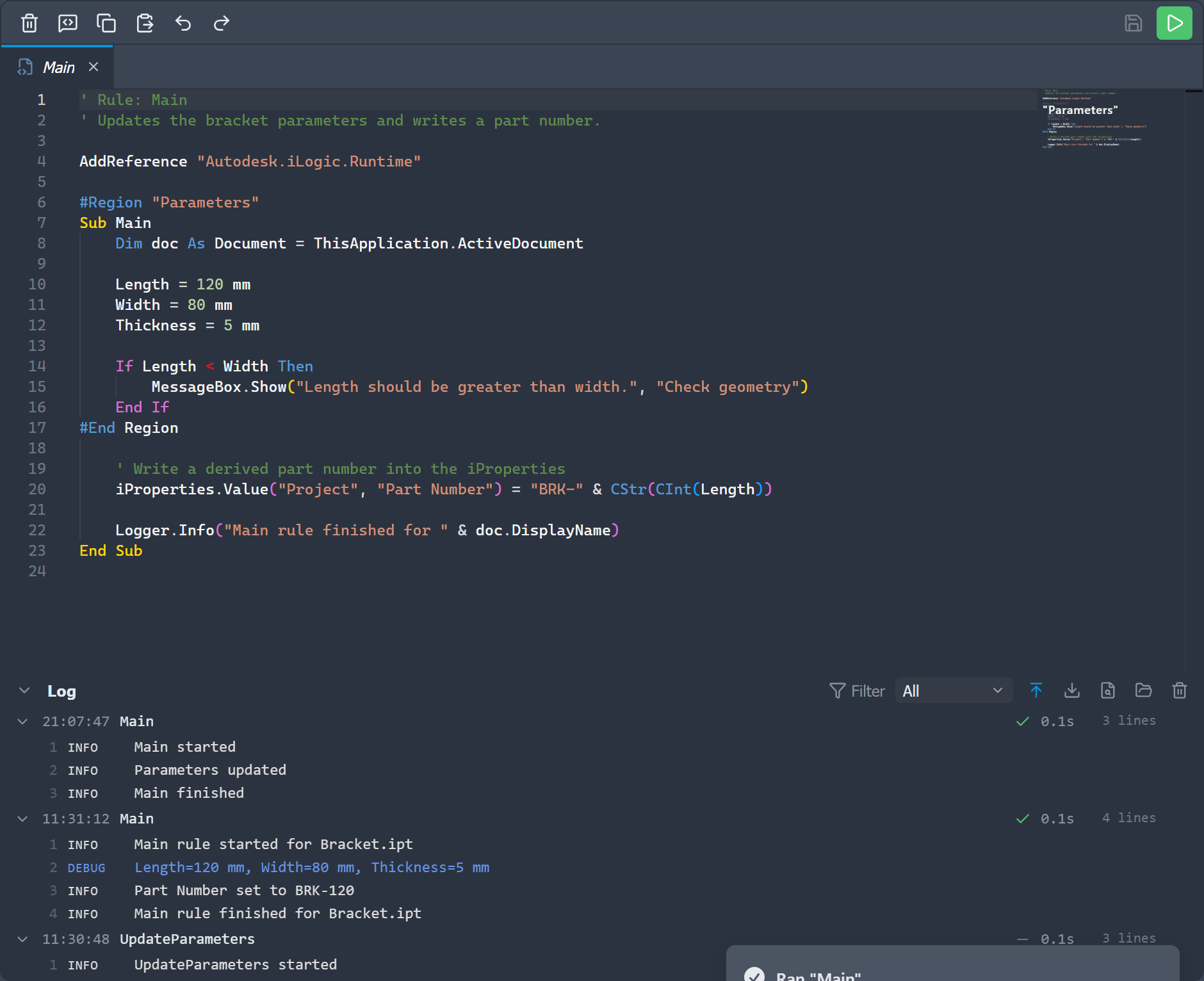
You can run the rule you are editing without leaving the editor. The Save & Run button in the toolbar (default shortcut F5) saves the active rule and then runs it through Inventor's iLogic engine.
How it works
- The active rule is saved first (the same as Save).
- The rule is run through iLogic, exactly as if you had triggered it in Inventor.
- While it runs, the Save & Run button shows a spinner.
- When it finishes, a toast reports success or the error, and the run's output appears in the run log.
Both document (internal) and external rules can be run this way.
Rules run off the host's call stack, so a rule that opens its own dialog (for example a MessageBox) will not freeze the editor. The run completes once the rule, and any dialog it shows, has finished.
Log level
What a run records is controlled by the iLogic log level, set from the dropdown in the status bar at the bottom of the panel (Trace, Debug, Info, Warn, Error, Fatal, or None). This is the same iLogic logging level Inventor uses, so changing it here changes it in Inventor too. The status bar re-syncs the level when the editor regains focus, in case you changed it from Inventor's own options.
See Run Log for how to read, filter, export, and persist the output.