Snippets
A searchable library of reusable iLogic code snippets, with favorites and your own custom snippets, dropped into the editor by drag or double-click.
Snippets are small, reusable pieces of iLogic code you can drop into a rule. The editor ships with a library of built-in snippets, and you can add your own. Open the Snippets view from the Snippets icon in the rail, the third in its top group after Rules and Search rules (it shares the sidebar with the Rules Explorer; the rail switches between them).
The built-in library is Autodesk's own iLogic snippet set, so it matches what you get in Inventor's editor, including the Vault snippets (check-in and check-out, searching and downloading Vault files, copying with a numbering scheme, and more). These ship with Inventor, so they are always available. The iLogicVault object the Vault snippets use is recognized by the editor, so an inserted Vault snippet completes and type-checks like any other rule code. The functions themselves connect to Vault when the rule runs, so they need a Vault Pro connection at runtime to actually do anything.
Above the built-in set, the Examples category holds a few complete sample rules that ship with the editor itself: the logging levels, exploring the API with IntelliSense, tidying a rule with Format rule, the iLogic built-in functions for parameters and iProperties, editor line editing, and two advanced rules (procedures and recursion, detecting utility systems). Insert one into an empty rule to try a feature. Examples are read-only: they can't be edited or deleted, and they never touch your own snippets.
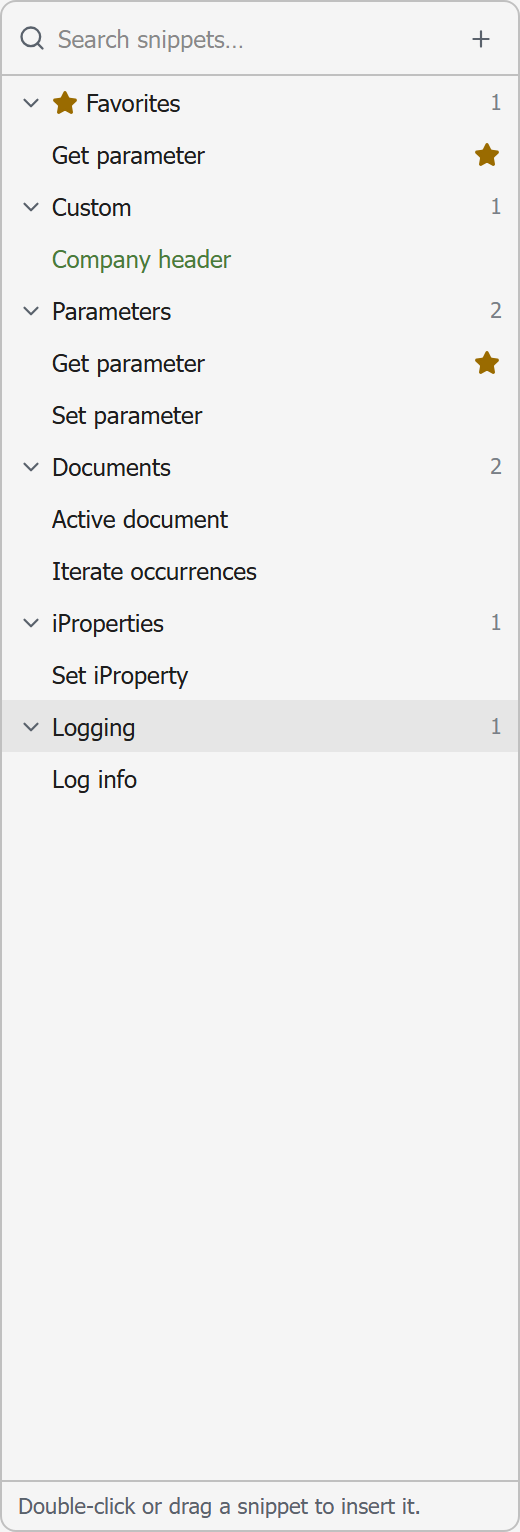
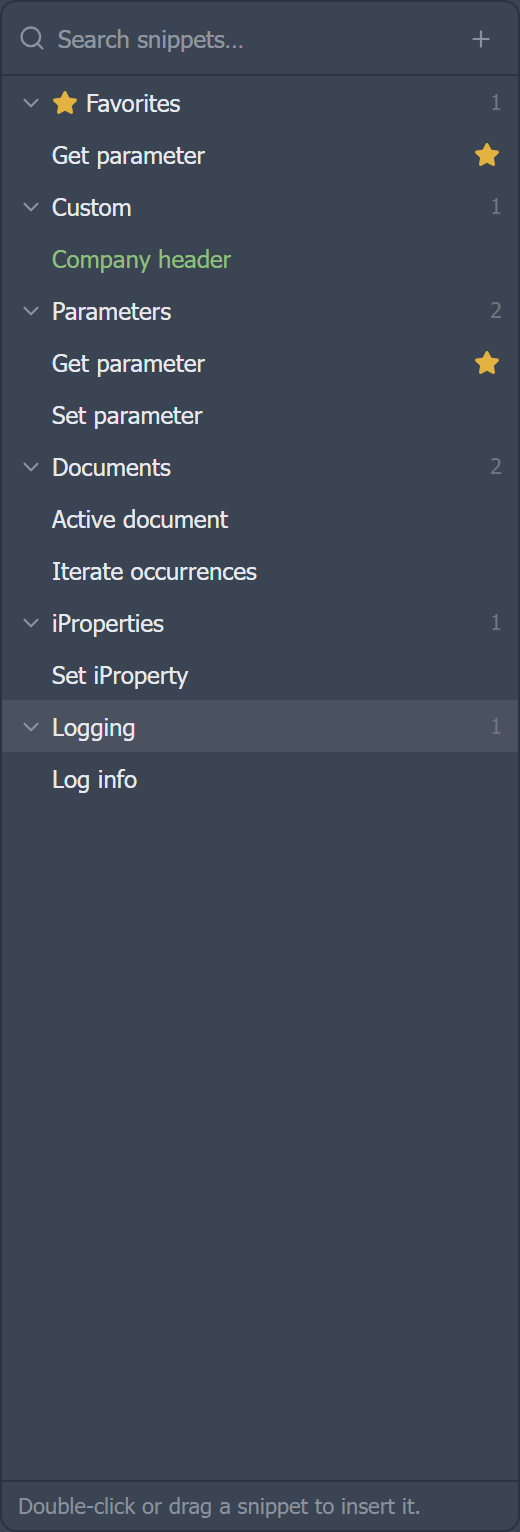
Finding snippets
- Search: type in the box at the top to filter by name or description.
- Categories: snippets are grouped into collapsible categories. Click a category header to expand or collapse it.
- Hover preview: hover a snippet to see a preview card with its description and code.
Inserting a snippet
Open a rule and click into the editor first, then:
- Double-click a snippet to insert it at the cursor, or
- Drag a snippet from the list and drop it onto the exact line where you want it.
Favorites
Click the star on any snippet to add it to a Favorites group that sits at the top of the list, so the snippets you use most are always one click away. Click the star again to remove it. Favorites are remembered between sessions.
Custom snippets
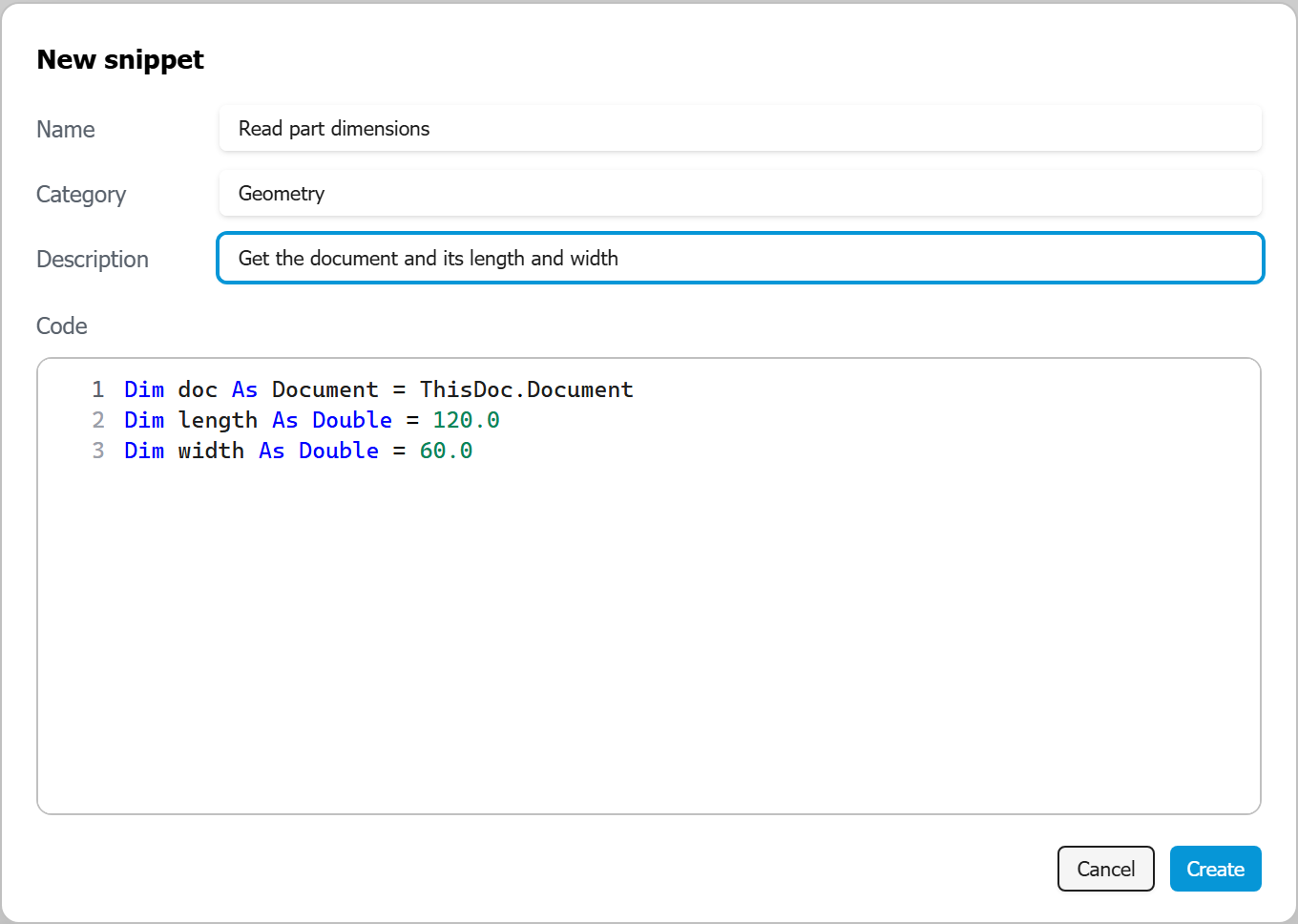
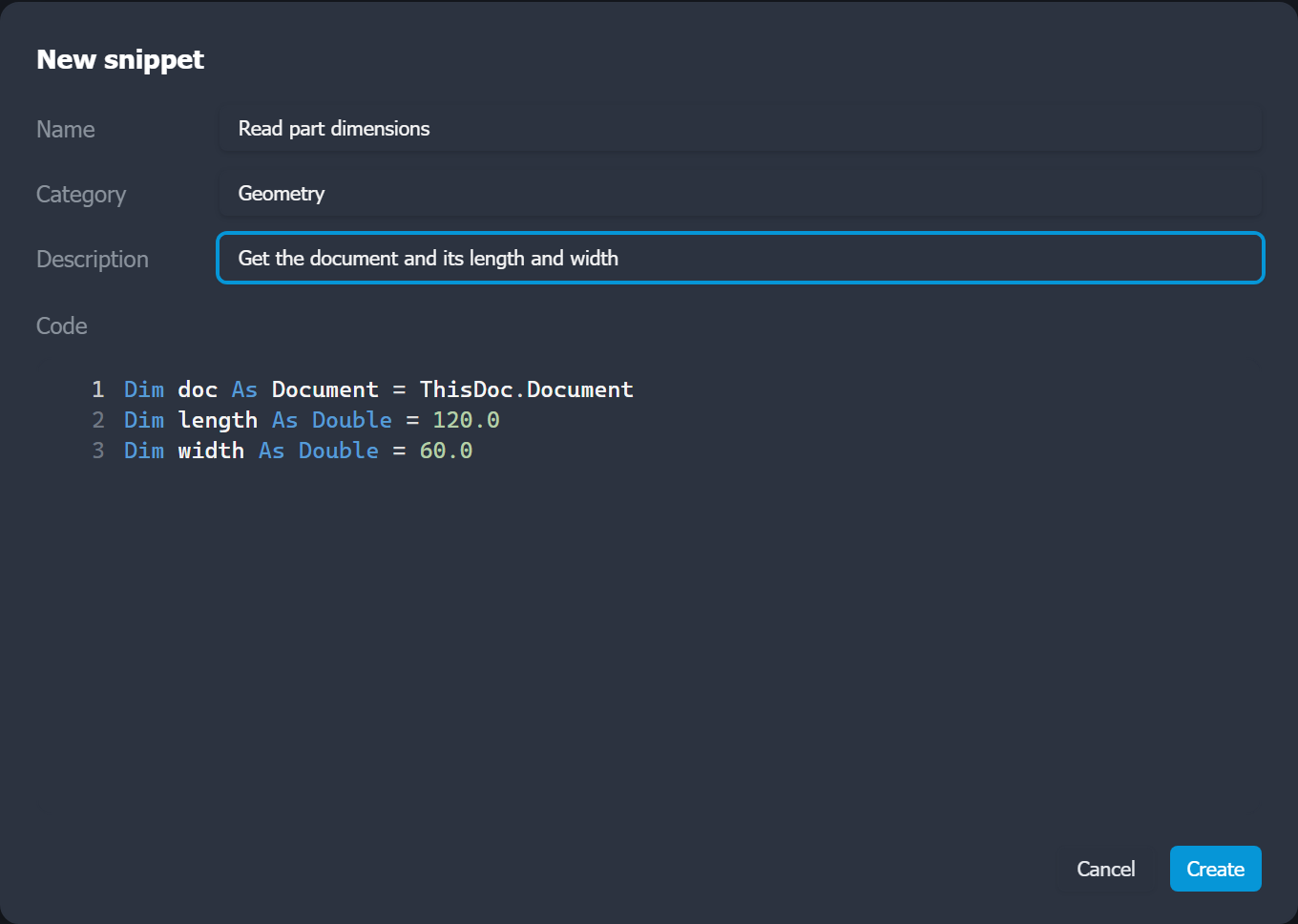
Beyond the built-in library, you can keep your own snippets. Custom snippets are shown with a colored name so they are easy to tell apart. They open in an editor dialog whose code field is a full syntax-highlighted VB editor, the same as the rule editor, so the code is easy to read and check as you write it. The category field suggests categories you have used before; press Esc to cancel or Ctrl+Enter to save.
| Action | How |
|---|---|
| New | Click the add button in the search bar to open the editor, then fill in the name, category, description, and code. |
| Edit | Click the pencil on a custom snippet to reopen it in the editor. |
| Delete | Click the trash icon on a custom snippet to remove it. |
From a selection
You can also turn code you already have into a snippet. Select some lines in a rule (or just place the cursor on a line), right-click, and choose Create snippet from selection. The editor opens prefilled with that code, dedented, ready to name and save. It is the quickest way to capture a pattern you have just written.
Your favorites and custom snippets are stored with your settings, so they travel with the import / export of your configuration.