Find in Rules
Search across all rules in the active document and every configured external rule directory.
Use Find in rules (Ctrl+Shift+F) when you need to find text beyond the rule currently open in the editor. It searches:
- every document rule in the active Inventor document;
- every external rule below the directories configured in Settings → iLogic Configuration.
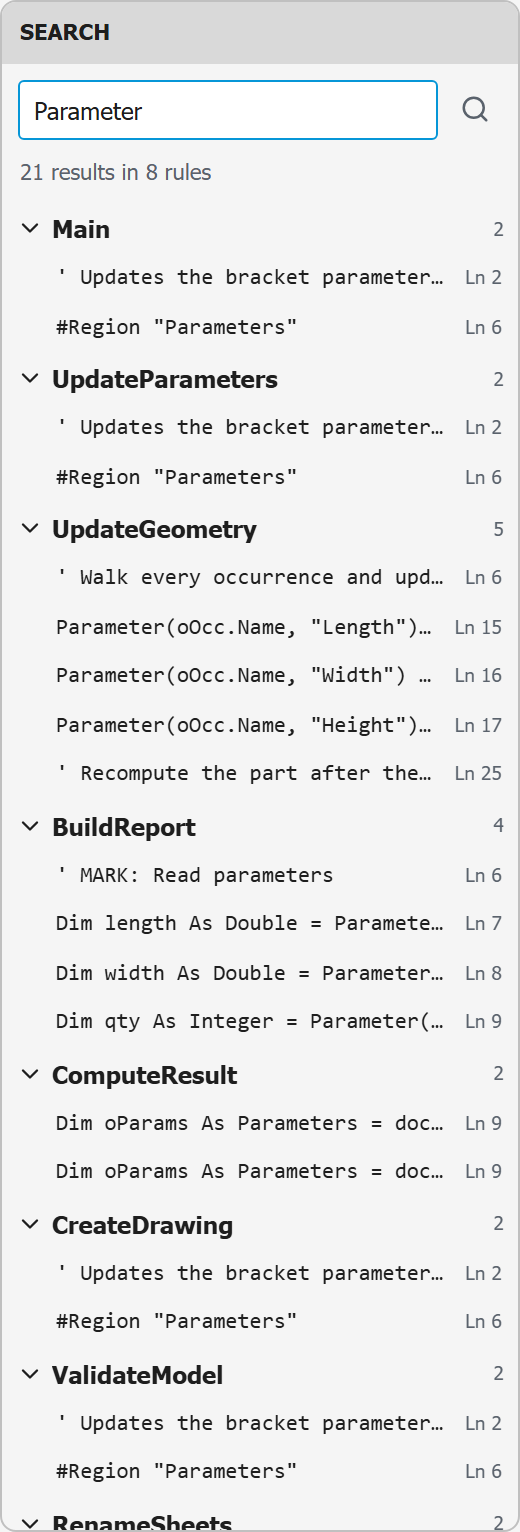
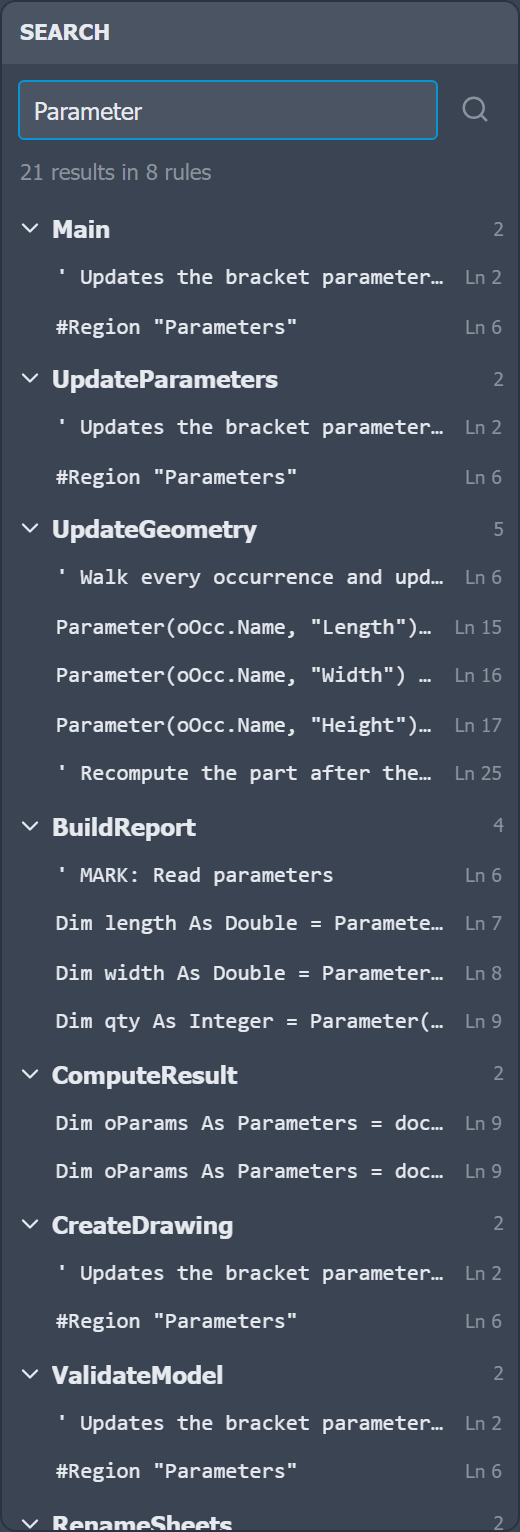
The Search rules entry in the rail opens a dedicated sidebar. Enter a term and press Enter or click the search button. Matching lines are grouped by rule, with a count for each rule and a total above the results.
Click a matching line to open its rule and jump directly to the line and column. Collapse a rule when you only want to inspect results from the other files.
Search text and results remain available when you switch to another sidebar entry, so you can move between the Explorer, Snippets, and Search without losing your work.
For an external rule, right-click its result heading and choose Open in Explorer to reveal the file on disk.
Ctrl+F searches only inside the active editor. Ctrl+Shift+F searches all document and external rules. Both shortcuts can be changed in Settings → Shortcuts.