Model Browser
Browse the active part or assembly, insert model names and parameters, and capture the current model state as iLogic code.
The Model tab in the bottom pane brings model information next to the rule you are editing. It shows a browser tree on the left and the active document's model, user, and reference parameters on the right.
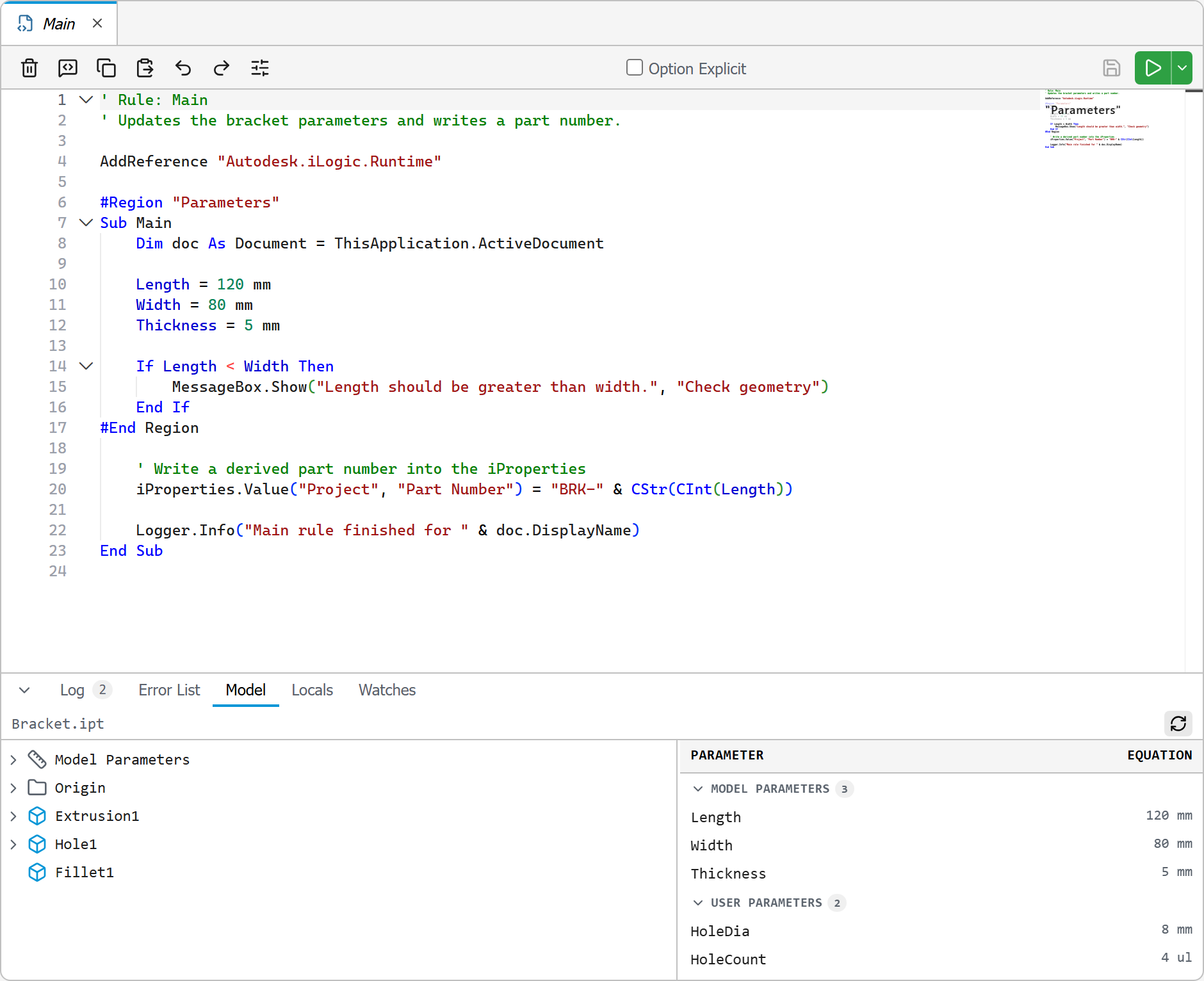
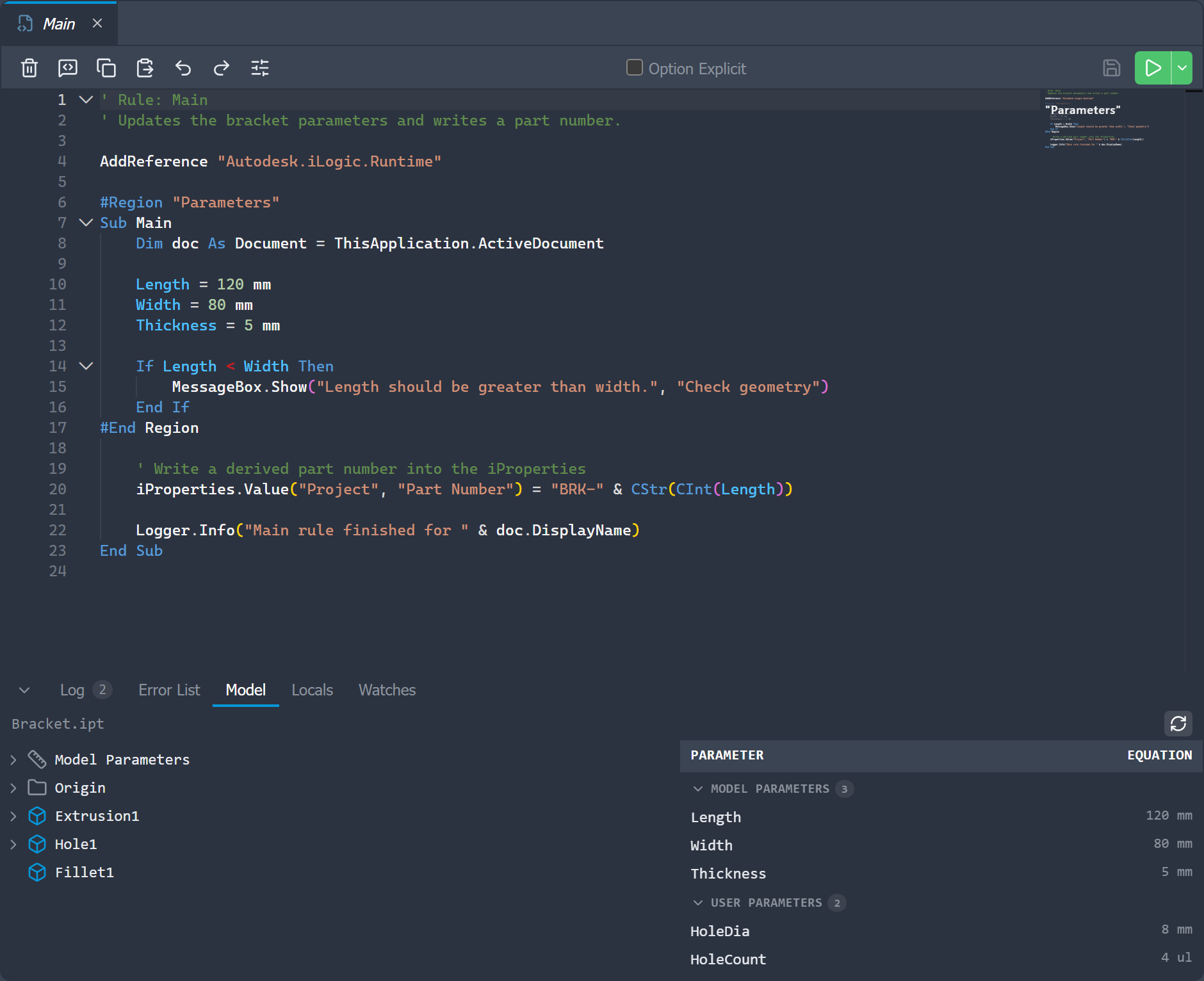
Model data loads only when you request it. Open the tab and click Refresh model the first time, then use the refresh button whenever you want to read the latest state from Inventor. Large branches load as you expand them to keep the initial view responsive.
Insert model data
Double-click a named model item or drag it into the editor to insert its name at the cursor. Parameters behave according to the active rule type:
- document rules insert the parameter name directly;
- external rules insert
Parameter("Name").
The parameter table also shows each parameter's current equation.
Capture Current State
Right-click a supported node and choose Capture current state to insert iLogic code that recreates or records its current state. Available actions depend on the selected item and document type:
- part features and sketches capture active state and related parameter values;
- parameter groups capture their current equations;
- assembly constraints capture active state and, when their entities can be resolved,
Constraints.Add...code; - component occurrences capture
Components.Addcode and can include their constraints; - component patterns capture active state and
Patterns.Addcode.
Right-click the document heading to capture the supported state for the whole document.
Constraint and pattern code refers to faces, edges and vertices by name. Where one has no name yet, picking the capture gives it an iLogic entity name in its part, which changes that part (so it asks to be saved). Just opening the Model tab never changes a part.
Captured code describes the current model and may depend on stable component, feature, constraint, and entity names. Review it before using it to rebuild a different document.