Run Log
A structured log pane that captures each rule run's output, filterable by level, with export to file and optional persistence.
The run log is a collapsible pane at the bottom of the editor. It captures the output of each rule run as a separate, expandable entry, newest first, so you can see exactly what a rule logged and whether it succeeded.
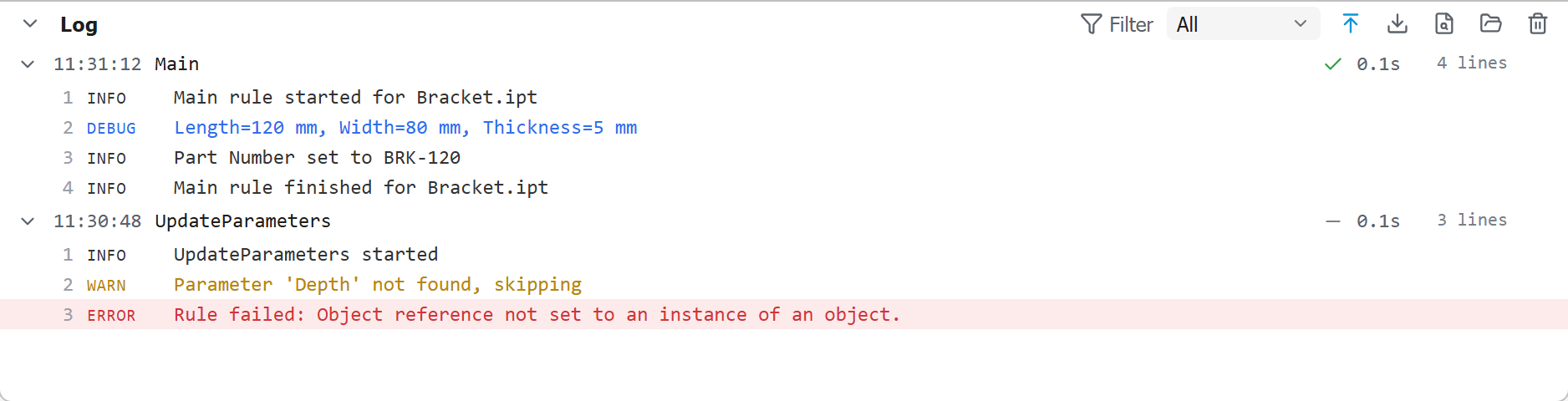
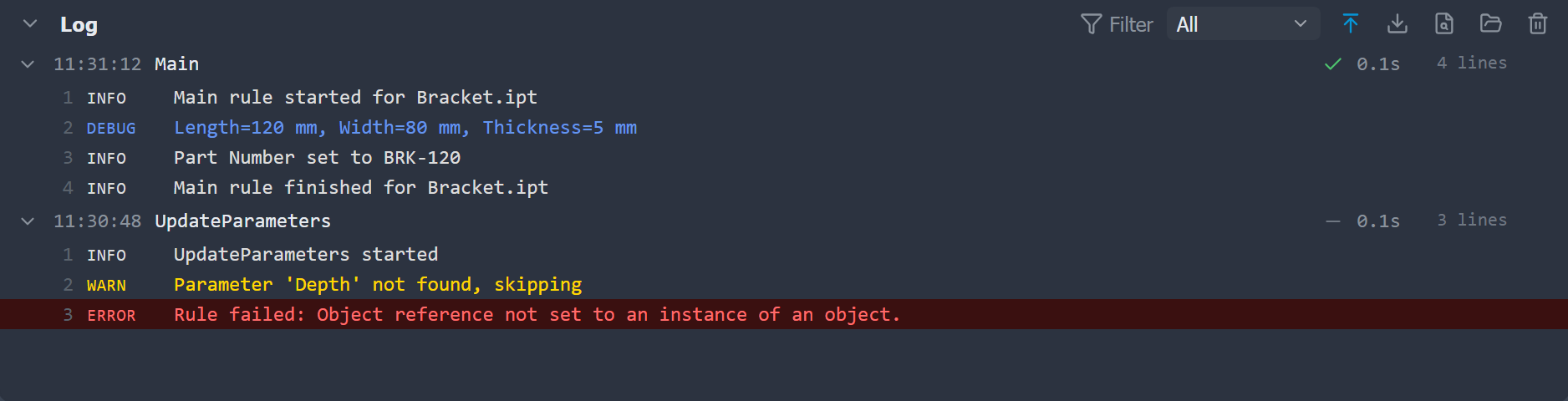
Toggle the pane with the chevron in its header or with Ctrl+` (Toggle log pane). Drag its top edge to resize it. The open state and height are remembered between sessions.
Toolbar
The log pane header has these controls:
| Button | Action |
|---|---|
| Filter | Show all messages, or only those at or above a level (≥ Debug, ≥ Info, ≥ Warn, ≥ Error). Display only; it does not change the iLogic log level |
| Expand / collapse all runs | Open every run's lines, or fold every run down to its header for a compact run history |
| Auto-scroll | Toggle whether the pane follows the newest output or stays put so you can read older runs |
| Export all runs | Save the whole run history to a JSON file |
| Open a log file | Open the Log Reader to inspect an exported log |
| Open log folder | Open the persistent-log folder in Windows Explorer |
| Clear log | Clear the in-memory run history |
Run entries
Each run is a collapsible header showing the start time, rule name, document name, outcome, and duration. Expand it to see the individual log lines, each tagged with its level. Double-click a run to focus it (collapse all the others), or use the expand all / collapse all buttons in the header to open or fold every run at once. The number of lines shown per run is capped for performance (configurable in Settings → Logging); all lines are still kept and included in exports.
Filtering and scrolling
- Level filter: show All, or only the messages at or above a level: ≥ Debug, ≥ Info, ≥ Warn or ≥ Error (≥ Error also keeps Fatal).
- Auto-scroll: when on, the pane follows the newest output. Turn it off to scroll back through earlier runs without being pulled to the bottom.
Exporting
You can export runs to a .json file for sharing or archiving:
- Export a single run from its entry (the file holds that one run).
- Export all runs from the pane header (the file holds a
{ "runs": [ … ] }array).
Exported files can be reopened later in the Log Reader.
Persistent logging
By default the run history is in-memory and cleared when the editor restarts. Enable Persist log to file in Settings → Logging to append each finished run to a file on disk as it completes (a new file each day), independent of the pane. You can set the folder and file name, or leave the folder blank to use the default app-data location (see Files & Logs). The pane header has a shortcut to open the log folder, and a button to clear the in-memory history.