Code Editor
A Monaco-based editor for iLogic rules, with IntelliSense, multi-cursor editing, sticky scroll, minimap, and an editing toolbar.
The editor is the main content area. It is built on Monaco (the same engine as VS Code) and is tuned for editing iLogic (VB.NET) rules. Open a rule from the Rules Explorer and it loads into a tab here.
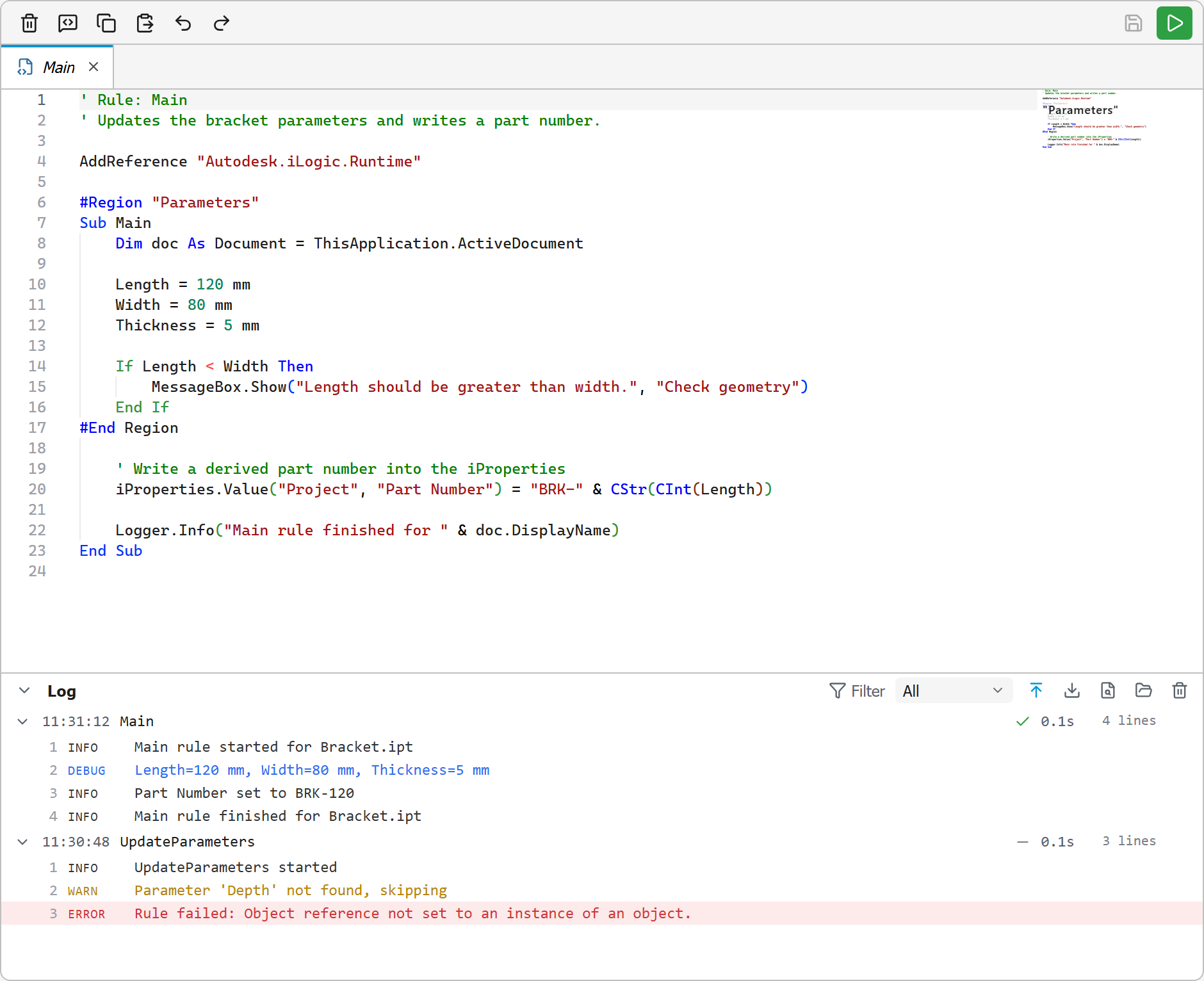
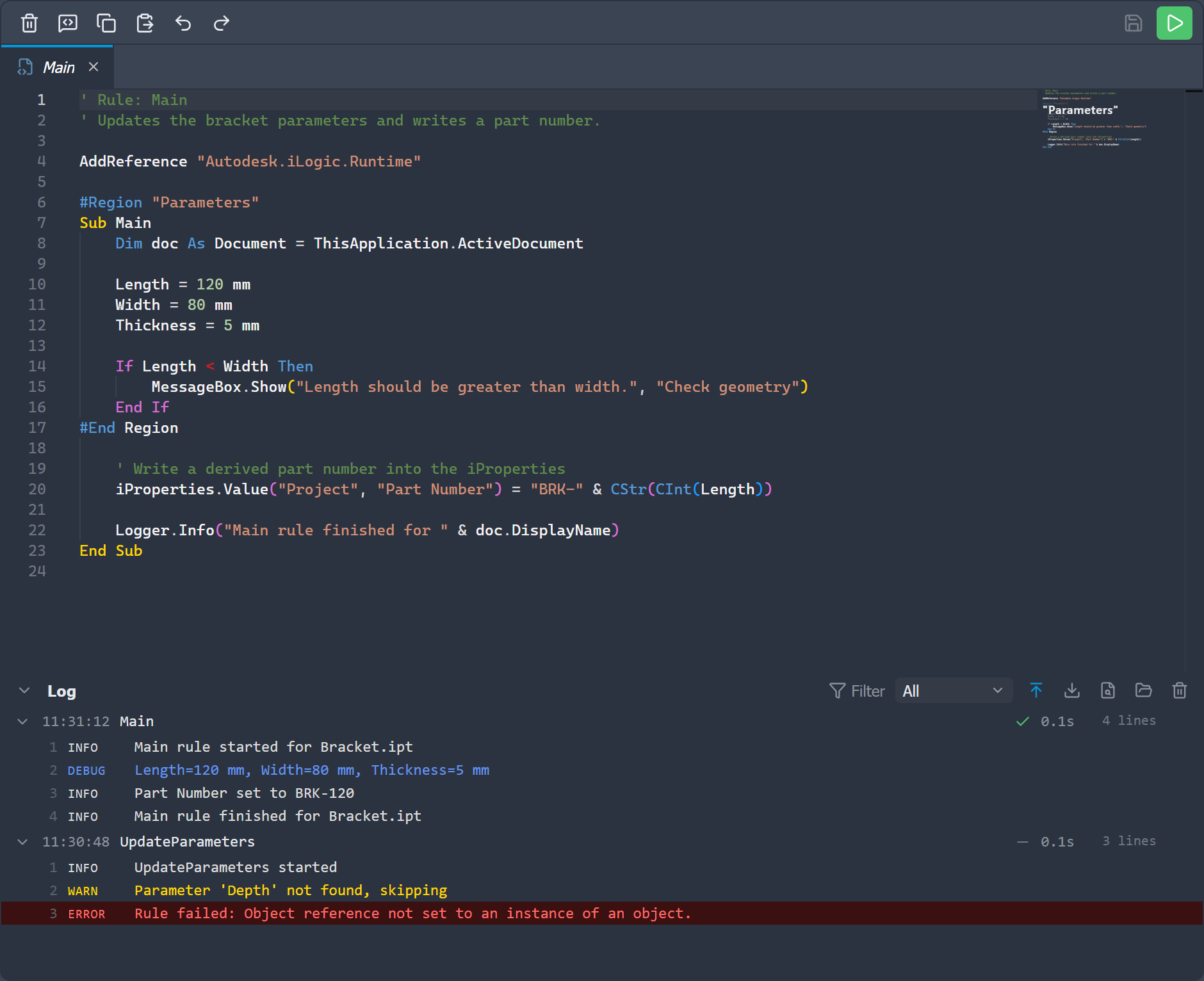
Editing toolbar
Each open rule has its own toolbar, just below its tab strip, with the most common actions. In a split editor every group shows its own toolbar, acting on that group's rule; it is hidden when the active tab is not a rule (for example Settings or Templates).
| Button | Action |
|---|---|
| Delete rule | Deletes the rule the active tab belongs to (with a confirmation) |
| Toggle line comment | Comments or uncomments the selected lines |
| Copy | Copies the current selection |
| Paste | Pastes from the clipboard |
| Undo / Redo | Steps through the edit history |
| Save | Saves the active rule |
| Save & Run | Saves, then runs the rule through iLogic (see Running Rules) |
IntelliSense
As you type, the editor asks the same VB compiler Inventor uses for completions and shows them inline, each with its kind (property, method, field, event) and a signature. You can discover the API without leaving the editor or guessing at member names.
Completions cover the full surface a rule can reach:
- VB.NET and the .NET base class library: types,
System.*members, and the language keywords. - The iLogic predefined objects:
ThisDoc,ThisApplication,Parameter,iProperties,Logger,ThisAssembly, and the rest, typed so member access on them completes. - The complete Inventor API: every interop type and member, so
doc.ComponentDefinition.walks the model just as it runs. - The Vault functions: the
iLogicVaultobject and its members, when the Vault client is installed (see Snippets for the ready-made Vault snippets). - Your document's parameters: in a document rule, each parameter of the active document completes by name and resolves to its type. External rules access parameters through
Parameter("Name")instead, so parameters are not offered there.
Trigger suggestions manually at any time with Ctrl + Space. Hovering a symbol shows its signature and, where Autodesk ships XML documentation, its description; the same information appears in the completion details.
In a document rule, references to the active document's parameters are tinted in the parameter colour (the same blue Autodesk's editor uses), so you can tell at a glance which identifiers are model parameters rather than local variables.
Because a document rule's parameters are known to the editor, referencing one no longer looks like an undeclared variable: it resolves and completes like the built-in objects, and the false "used before assigned" warning is gone.
Editing comforts
The editor brings the multi-cursor and line tools you expect from a modern code editor, all remappable in Settings → Shortcuts:
- Multi-cursor: select the next occurrence (
Ctrl+D) or all occurrences (Ctrl+F2) of the current word. - Line moves: move (
Alt+Up/Alt+Down) or duplicate (Alt+Shift+Up/Alt+Shift+Down) the current line. - Comment toggling:
Ctrl+/on the selection. - Find: search the active rule with
Ctrl+F, or search all rules withCtrl+Shift+F. - Delete line: remove the current line with
Ctrl+Shift+K. - Folding: fold and unfold
Sub/Function,If,For,Do,While,Select Case,Try, andUsing/Withblocks,#Regionsections, iLogic'[ … ']comment regions, and runs of consecutive comment lines. Collapse the whole rule withCtrl+0or expand it withCtrl+J. Your folds (and cursor and scroll position) are kept when you switch away from a tab and come back.
Diagnostics
VB errors and warnings are marked as you type. The bottom pane's Error List collects problems from every open rule and lets you jump to the affected line. See Diagnostics and Error List for live checks, run errors, and the per-rule Option Explicit setting.
Format
Format rule (Alt+Shift+F, like VS Code) reindents and tidies the whole rule, fixing spacing and indentation through the same VB engine that powers IntelliSense.
Right-click menu
Right-click in the editor for a context menu with Cut / Copy / Paste, Toggle / Remove line comment, Indent / Unindent, an Outlining submenu (fold / unfold), and Format rule. Every command is also remappable in Settings → Shortcuts.
Sticky scroll
With Sticky scroll enabled, the enclosing scope (the current Sub/Function, #Region, or If block) stays pinned to the top of the editor as you scroll, so you always know where you are in a long rule. Toggle it in Settings → Editor.
Minimap
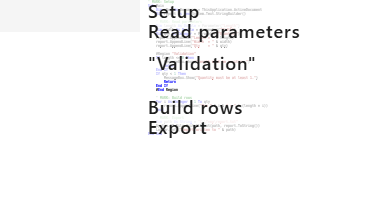
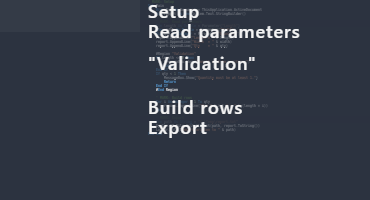
The minimap is an overview of the whole rule on the right edge, for quick navigation. When Minimap section titles is on, #Region and MARK: comments appear as labelled section headers in the minimap. Both are configurable in Settings → Editor.
Add a ' MARK: <name> comment anywhere in a rule to drop a labelled marker into the minimap, so you can find your place in a long rule at a glance. #Region "<name>" blocks are labelled the same way.
Font
The editor font family and size are configurable in Settings → Editor. A curated list of common coding fonts is offered, and the size ranges from 8 to 32 px.